Notes in folders
Write in a simple editor, group notes into folders, pin the ones you need, and search across all of them. Notes work without an AI key.

Notes is a private place to write, draft with AI or record a meeting. Then Extract Work finds the tasks inside, and you decide which go to your Checklist or your Teams.
Extract the action items from a meeting note, choose where each one goes, and watch only the ones you pick get created.
Sam will set up the team workspace by Friday. Priya to send the onboarding invites. We should also review the weekly usage numbers before the leadership update.
Review the drafts
Every draft starts as Leave open. Nothing is created until you confirm it.
Notes starts as plain writing. When a note contains work, you can pull that work out and send it where it belongs, without retyping it.
Write in a simple editor, group notes into folders, pin the ones you need, and search across all of them. Notes work without an AI key.
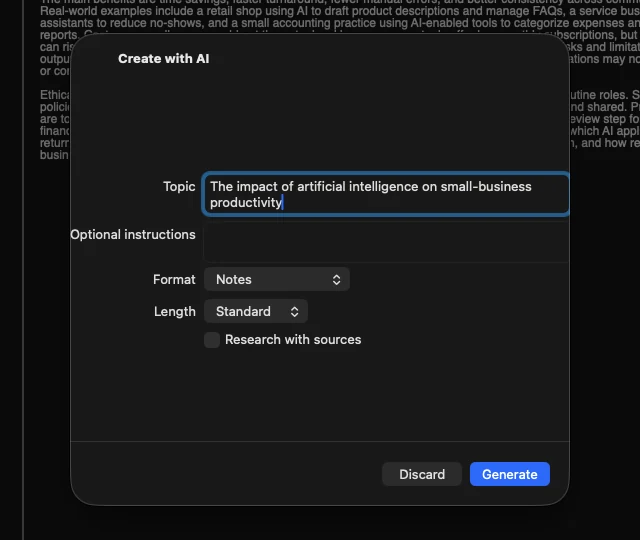
Give ClicktAI a topic, a format and a length. You get an editable draft, can ask for a revision or regenerate it, and the topic becomes the note title. Nothing is saved until you choose Save as Note.
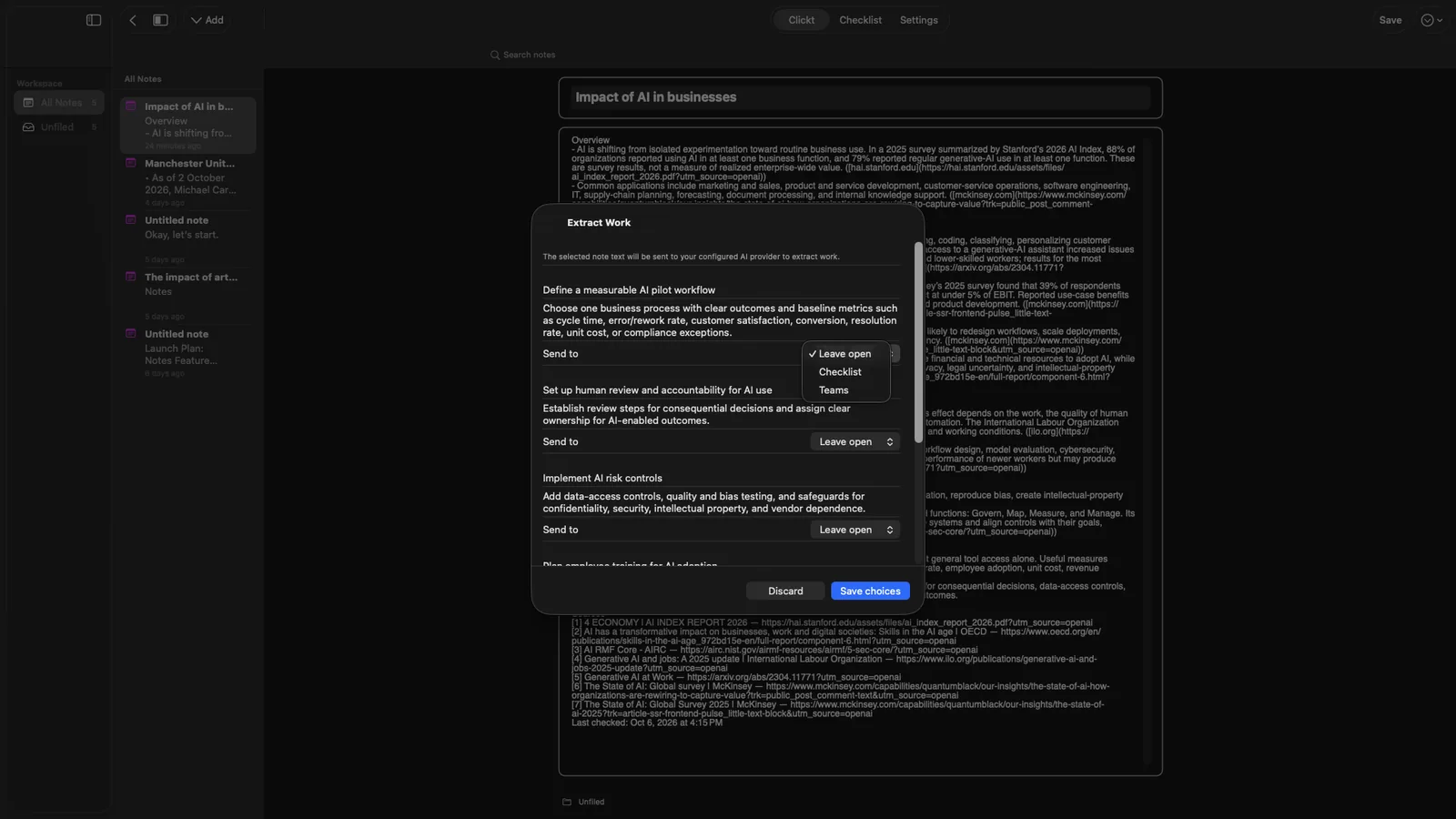
ClicktAI reads a note and lists the work hiding inside it. Edit any draft, then send each one to Leave open, Checklist or Teams.
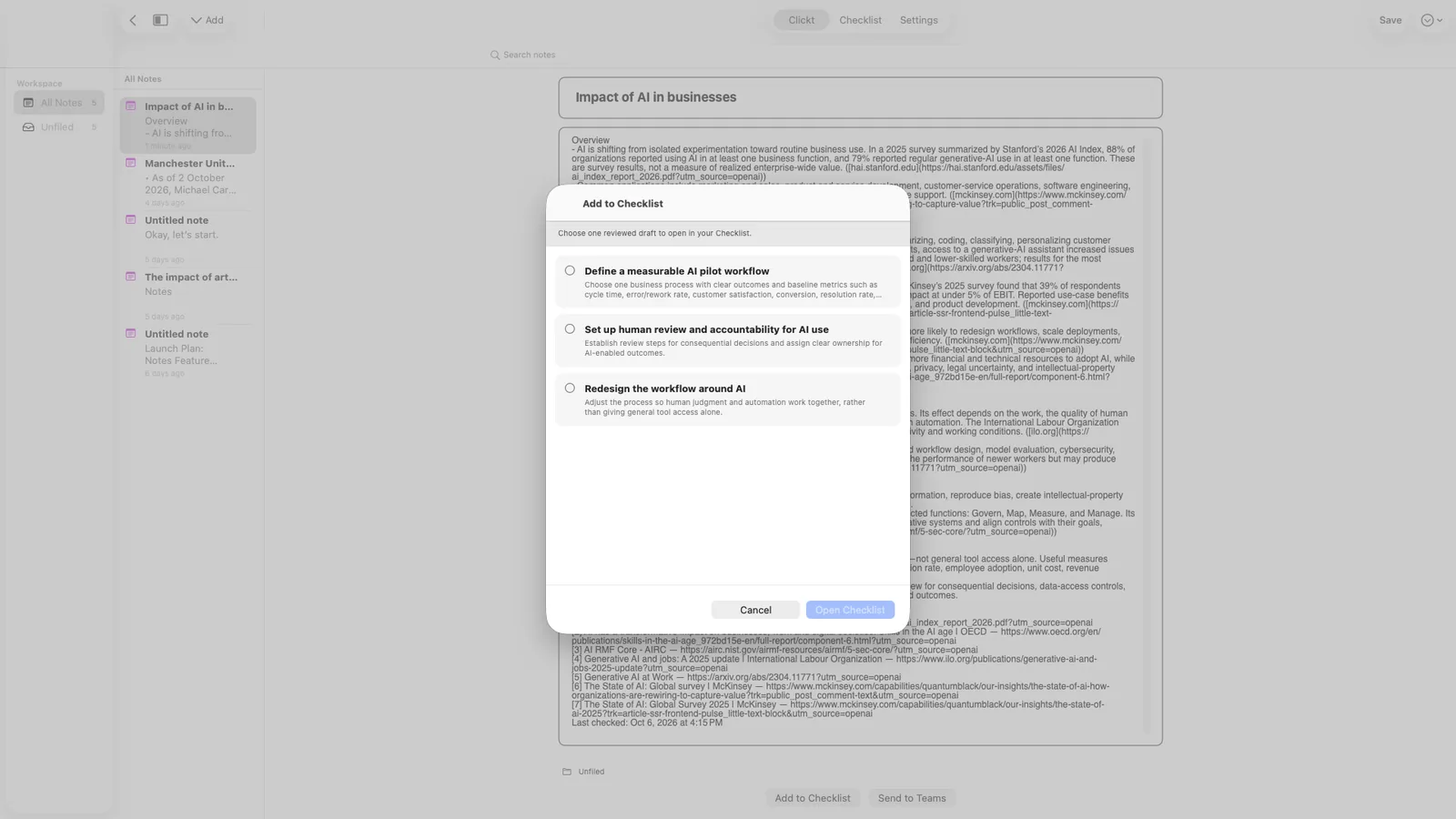
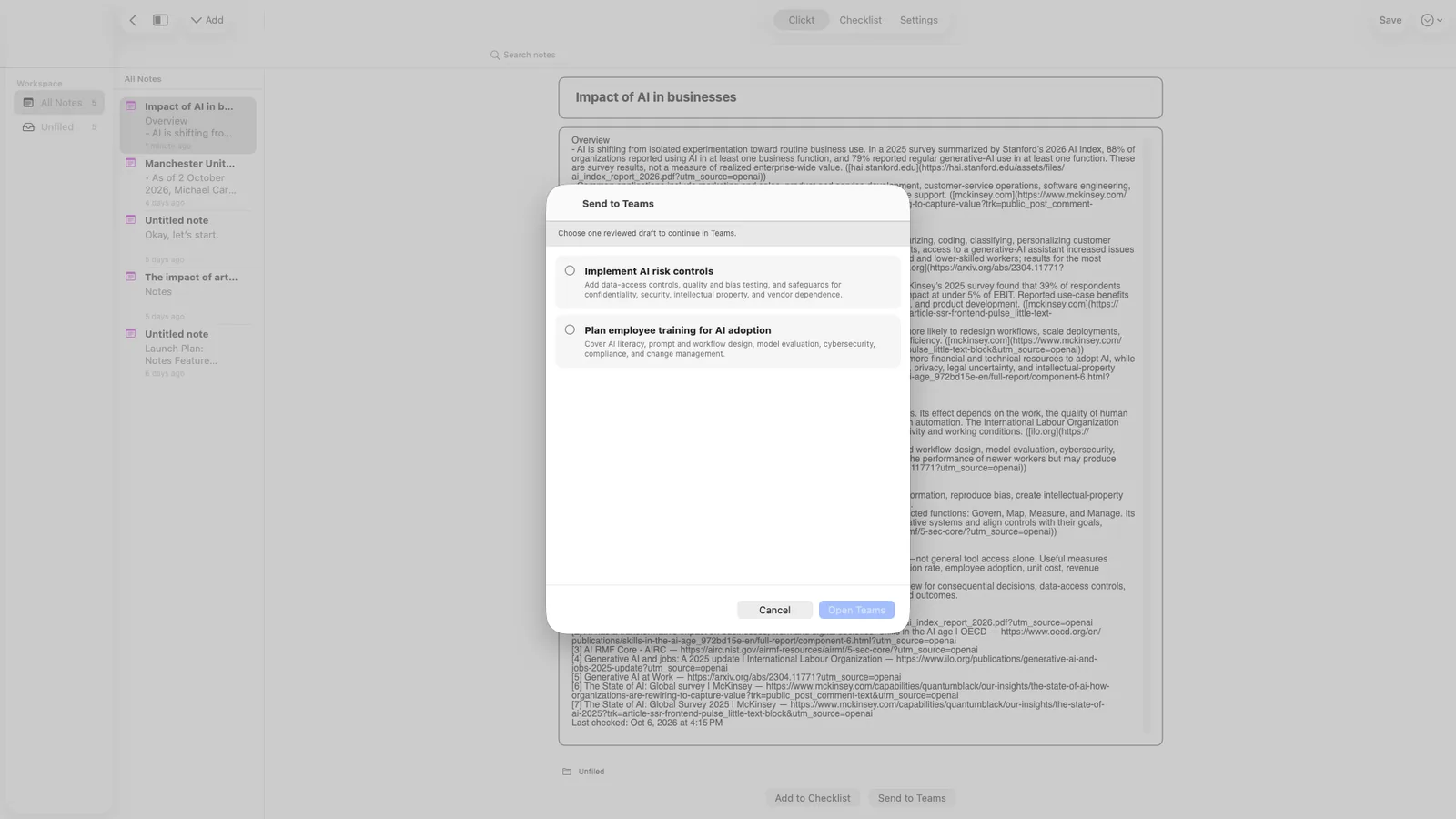
Checklist drafts become ordinary checklist items, one at a time. Team drafts go to a team you own as a Task, an Invite or an Announcement. A draft is marked done only after Clickt has actually created it.
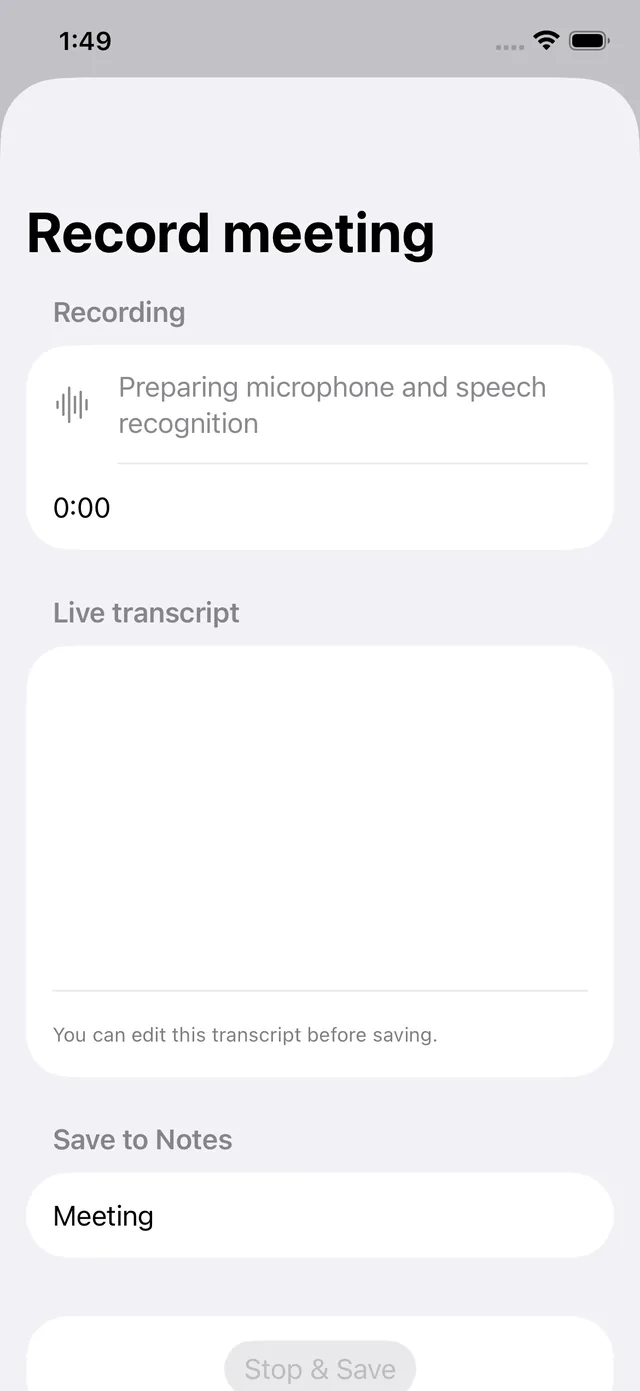
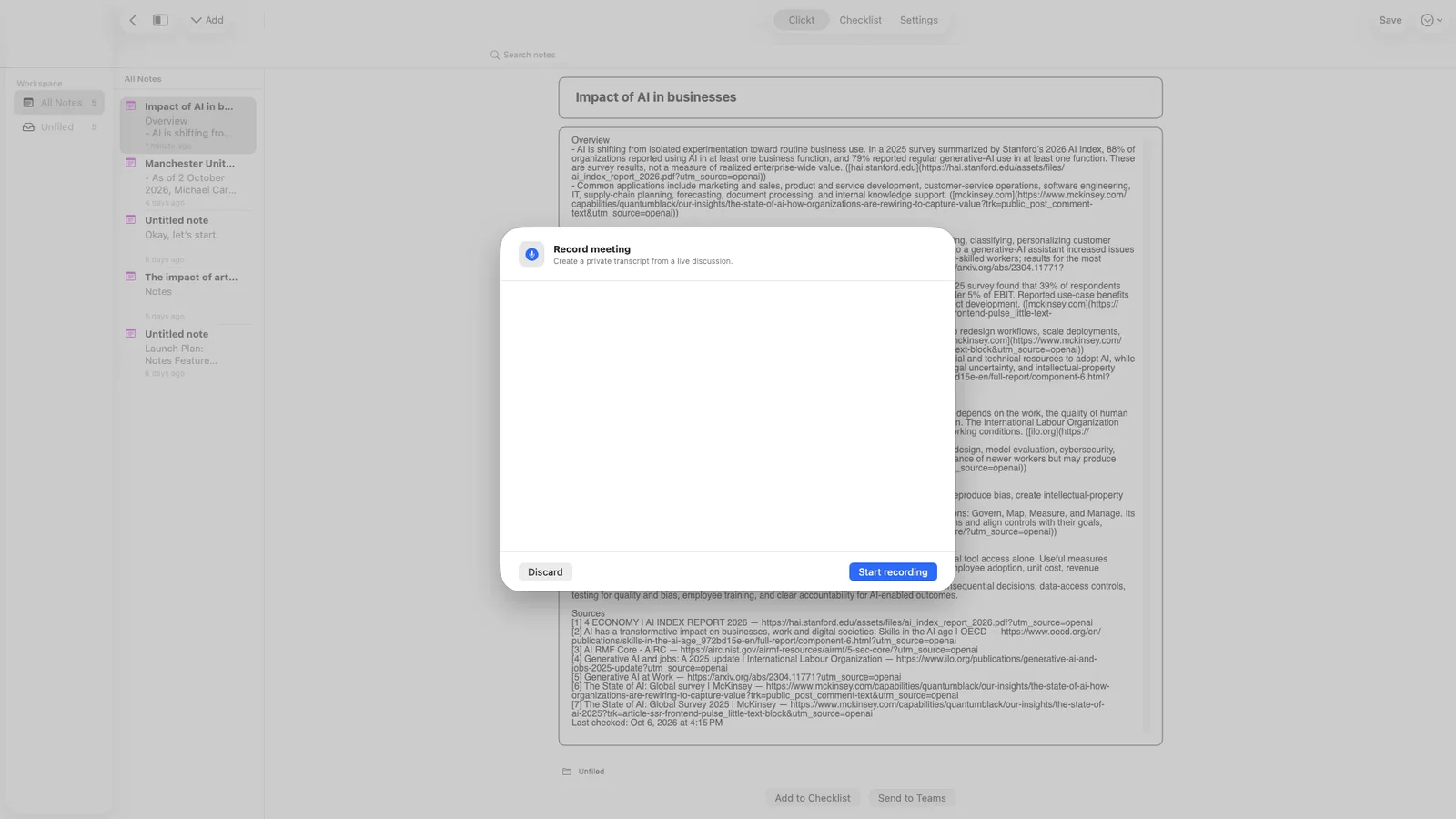
Start with a consent screen, record while the screen stays open, and watch a live transcript you can edit. Save it to Notes and the temporary audio is deleted. There is no background recording and no speaker identification.
The same four steps work whether you typed the note, asked AI to draft it, or recorded the meeting.
Start a note, create one with AI, or record a meeting into a transcript.
Run Extract Work. ClicktAI lists the tasks it finds. You edit, merge or remove them.
Every draft starts as Leave open. Move it to Checklist or Teams when you are ready.
Each item opens in the normal Checklist or Teams flow. You confirm it, and the note shows what was sent.
The meeting ends and everyone agrees someone will send the notes. A page of text goes into a chat. Someone retypes the action items into a list, someone else forgets one, and the person who owned it finds out on Friday.
Record the meeting or paste the notes, and run Extract Work. Send your own follow-ups to your Checklist and the team’s to Teams, each one reviewed first. The note keeps a record of what was sent, so nothing is created twice.
Describe what you need, such as an agenda, a study guide or a plan, and choose a format and length. You can also turn on research with sources. Edit the draft, ask for a revision, regenerate, or discard it. Only the text you submit goes to your AI provider, and nothing is saved until you choose Save as Note.
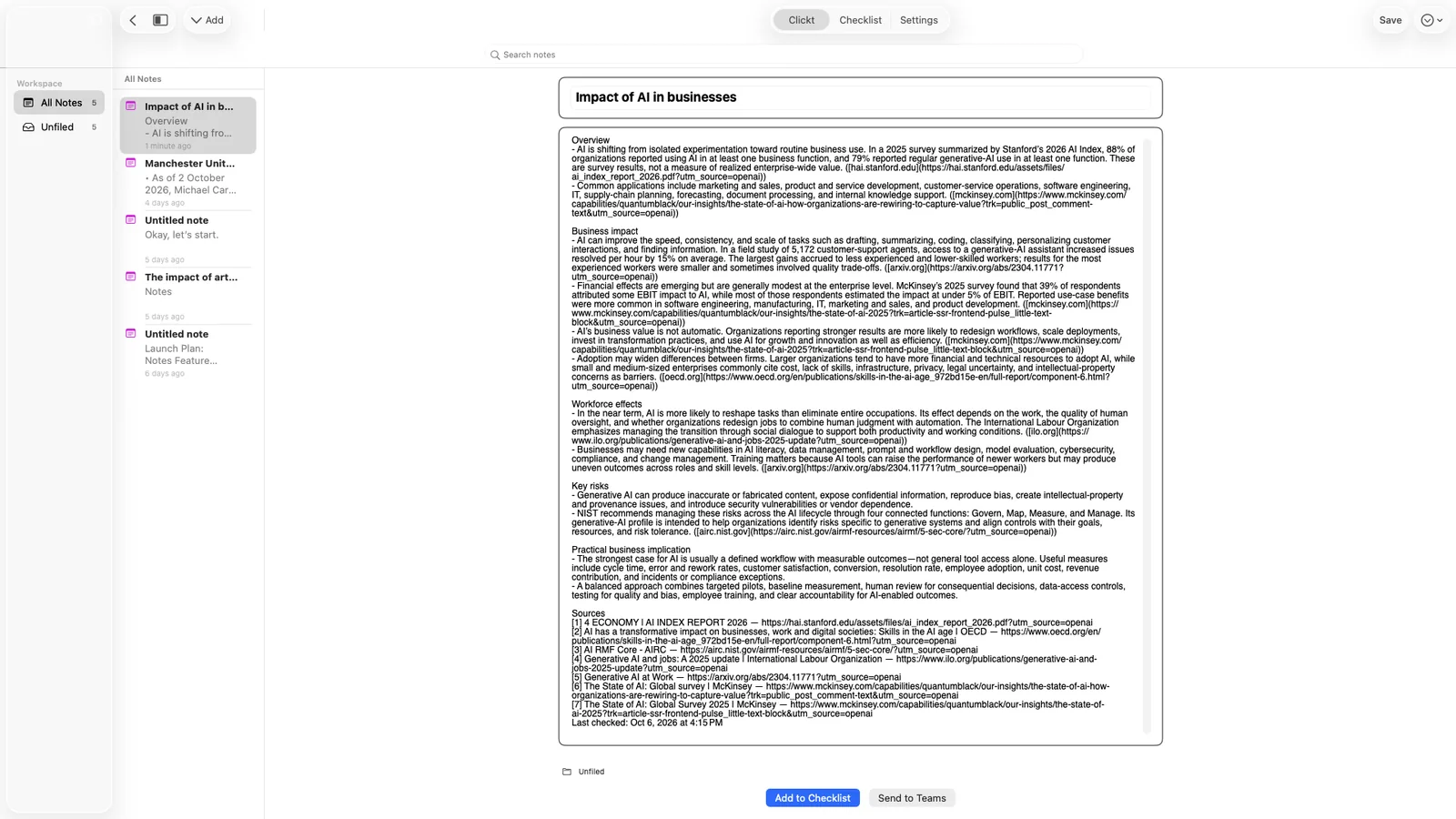
Folders and notes on the left, the editor in the middle, and each step of Extract Work and dispatch in its own focused sheet.
Folders and notes on the left, a focused editor in the middle, and Add to Checklist and Send to Teams ready below.
ClicktAI lists the work it found in the note. The note text is sent to your configured AI provider for this step.
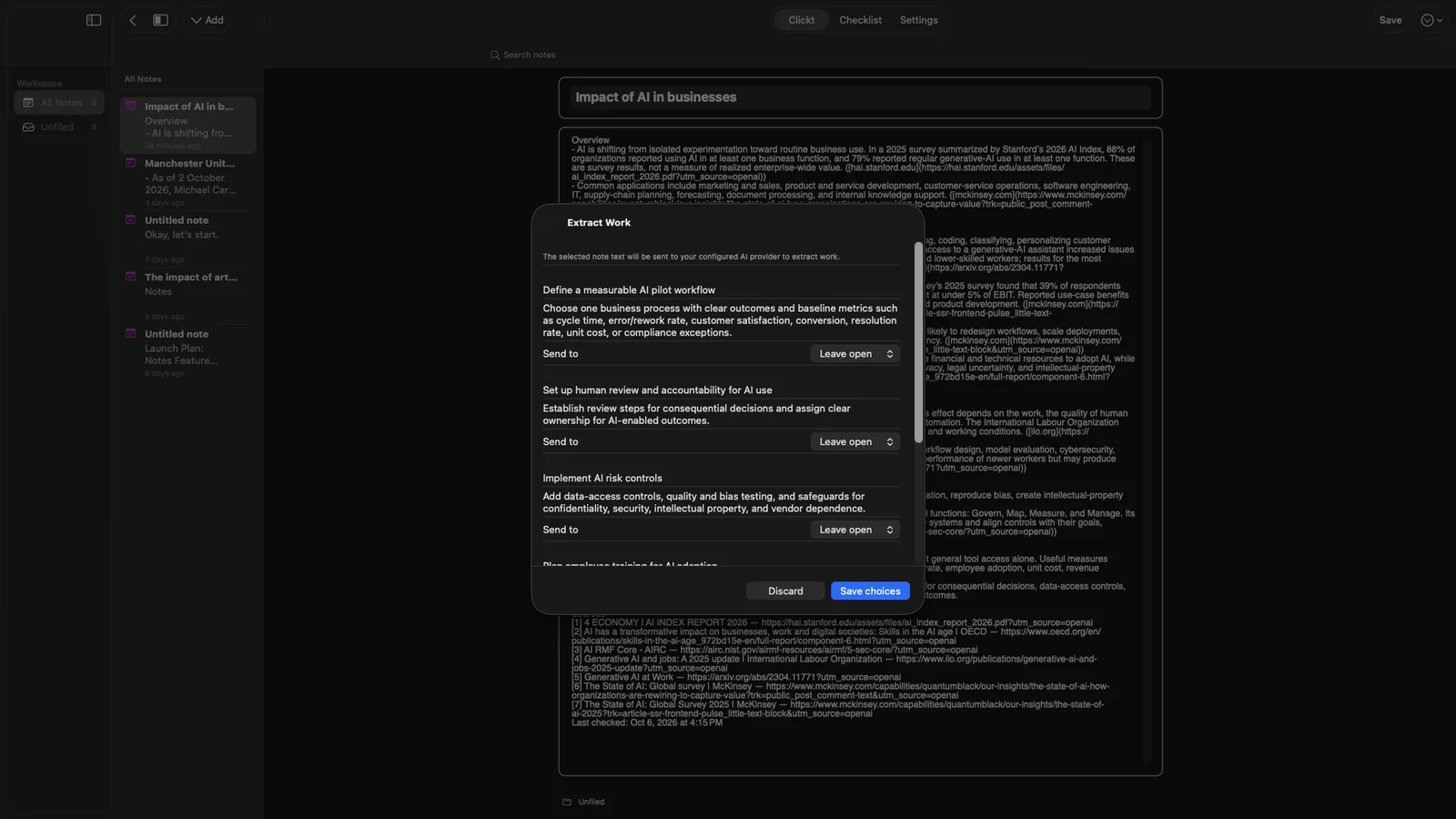
Each draft has a Send to menu: Leave open, Checklist or Teams. Leave open is the default.
Pick one reviewed draft, edit it if you want, and open it in your Checklist.
Pick a draft and continue in Teams, where you choose a team you own and send it as a task, an invite or an announcement.
Create a private transcript from a live discussion. You start the recording yourself, after you agree to the consent notice.
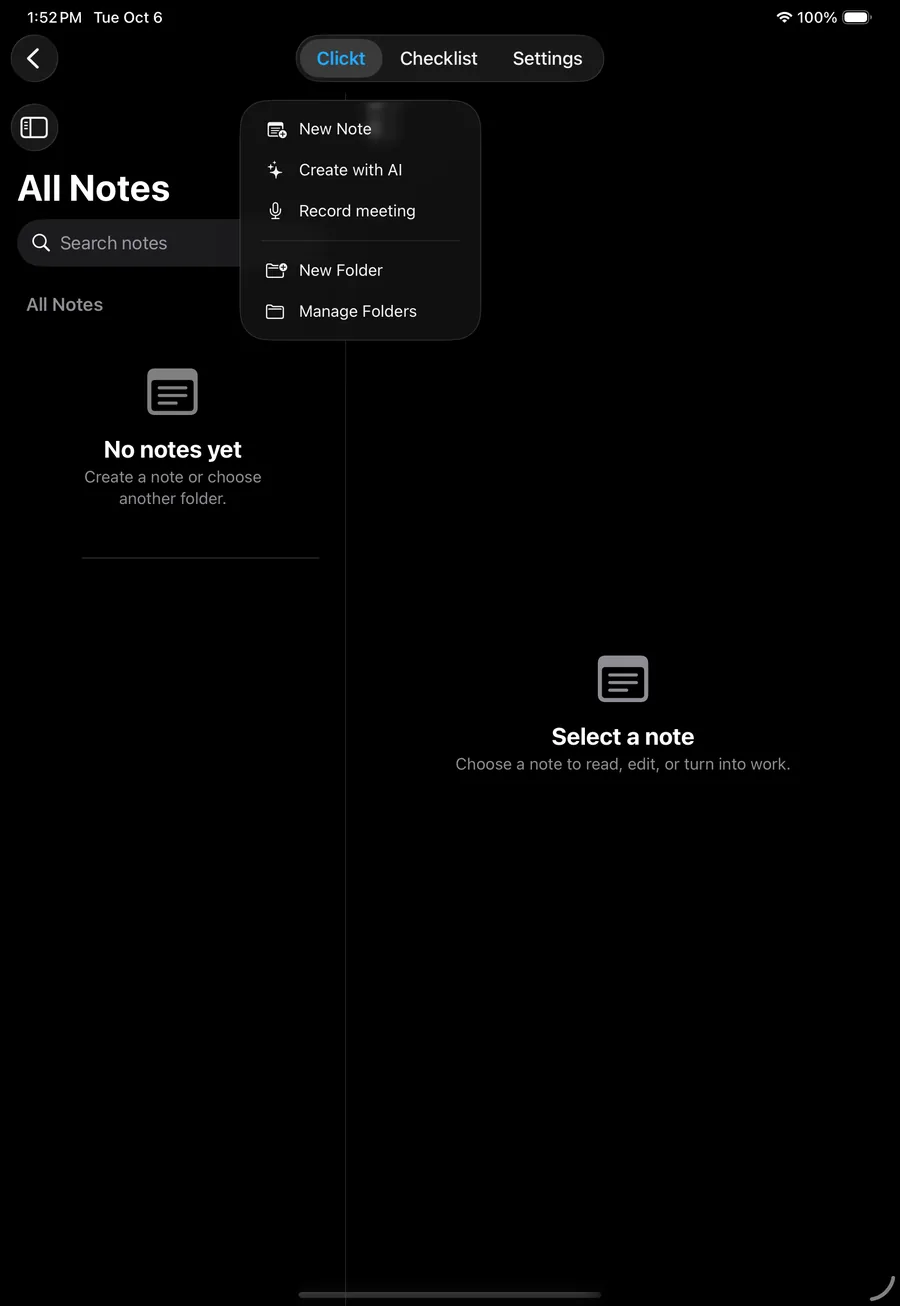
New Note, Create with AI and Record meeting sit together, next to New Folder and Manage Folders. On iPad and Mac, folders and the note list sit beside the editor.
Notes captures the work. Teams, Checklist, Builder and Presentation help carry it through.
Send an extracted draft to a team you own as a task, an invite or an announcement.
Explore Teams ChecklistTurn a note’s action items into personal checklist items, one at a time.
Explore Checklist BuilderWhen a note raises a question, analyse the numbers behind it.
Explore Builder PresentationTurn what a meeting decided into a deck people can review together.
Explore PresentationNotes is in Clickt on iPhone, iPad and Mac, and also on Android, which is in private testing. It is included in every plan.