Create and edit a deck
Start a deck, add or edit slides, and work on a visual canvas with text, images, and layout controls.
 Clickt
Presentation
Presentation turns work, evidence, and ideas into an editable deck with a visual canvas—ready to preview, refine, and share in the format the moment calls for.
Released on Apple and Android platforms
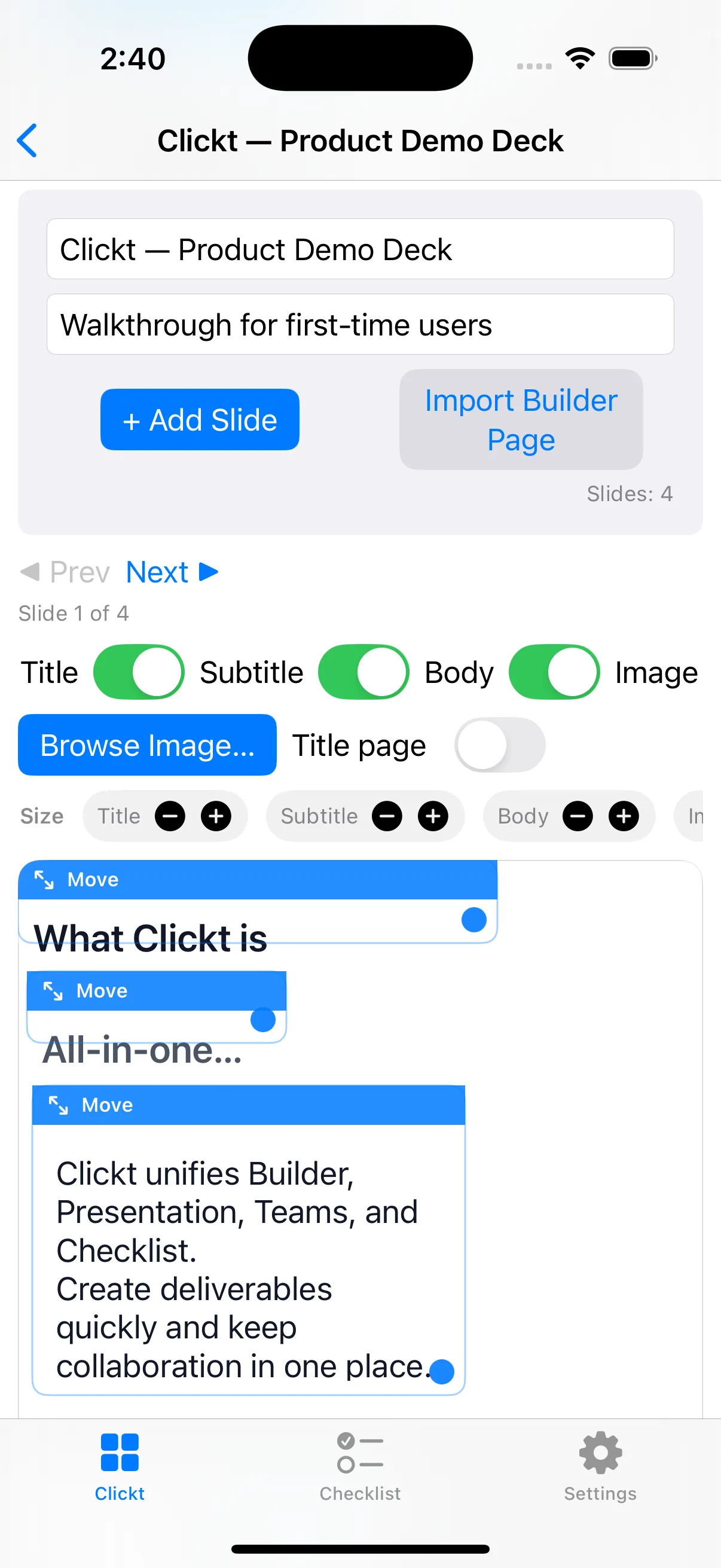
What Presentation does
Presentation gives a team one place to assemble the narrative around an update, edit it visually, preview what people will see, and produce a shareable output.
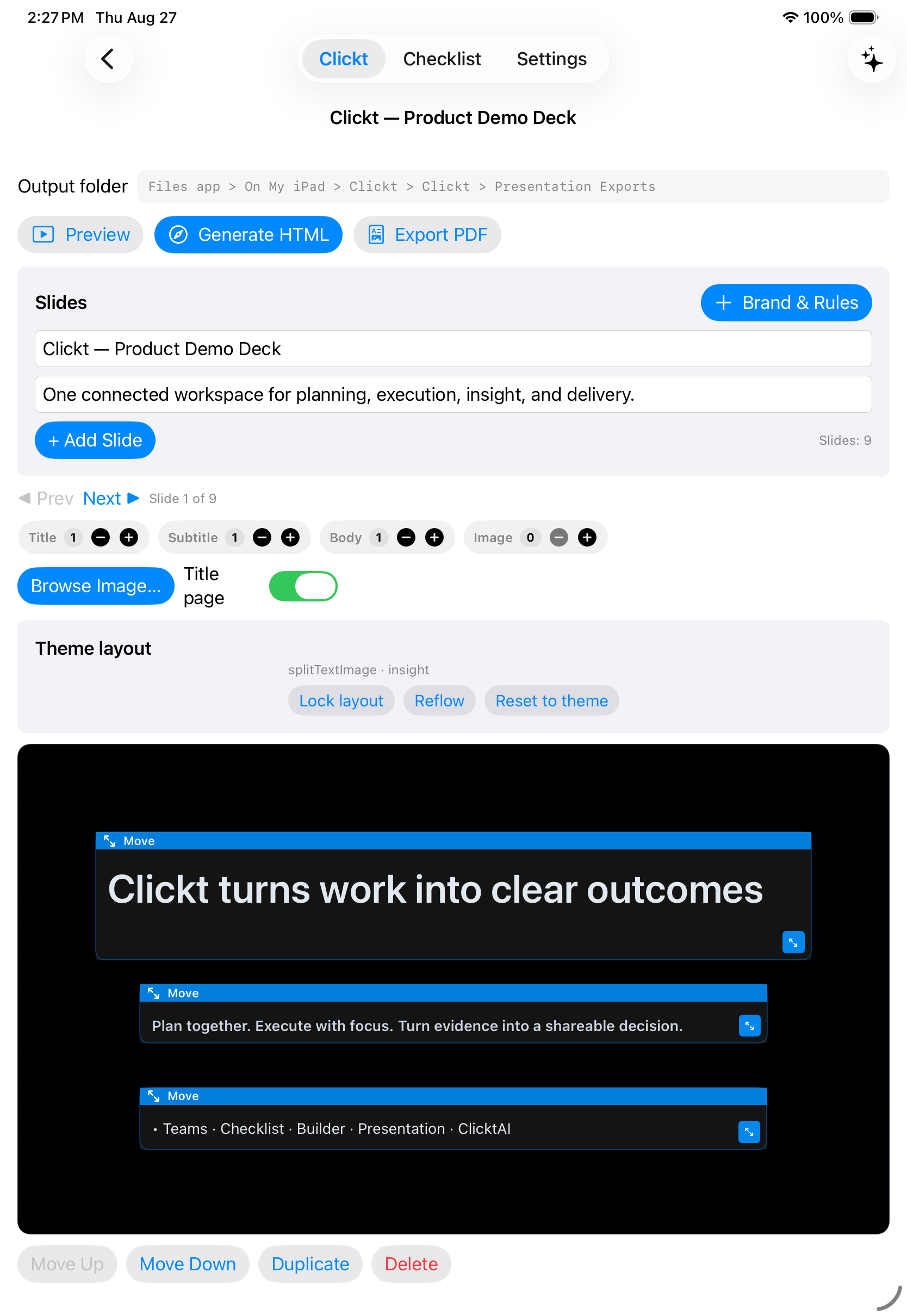
Start a deck, add or edit slides, and work on a visual canvas with text, images, and layout controls.
Choose from 23 built-in themes across business, data, creative, education, product, and marketing styles to give the work a coherent visual treatment.
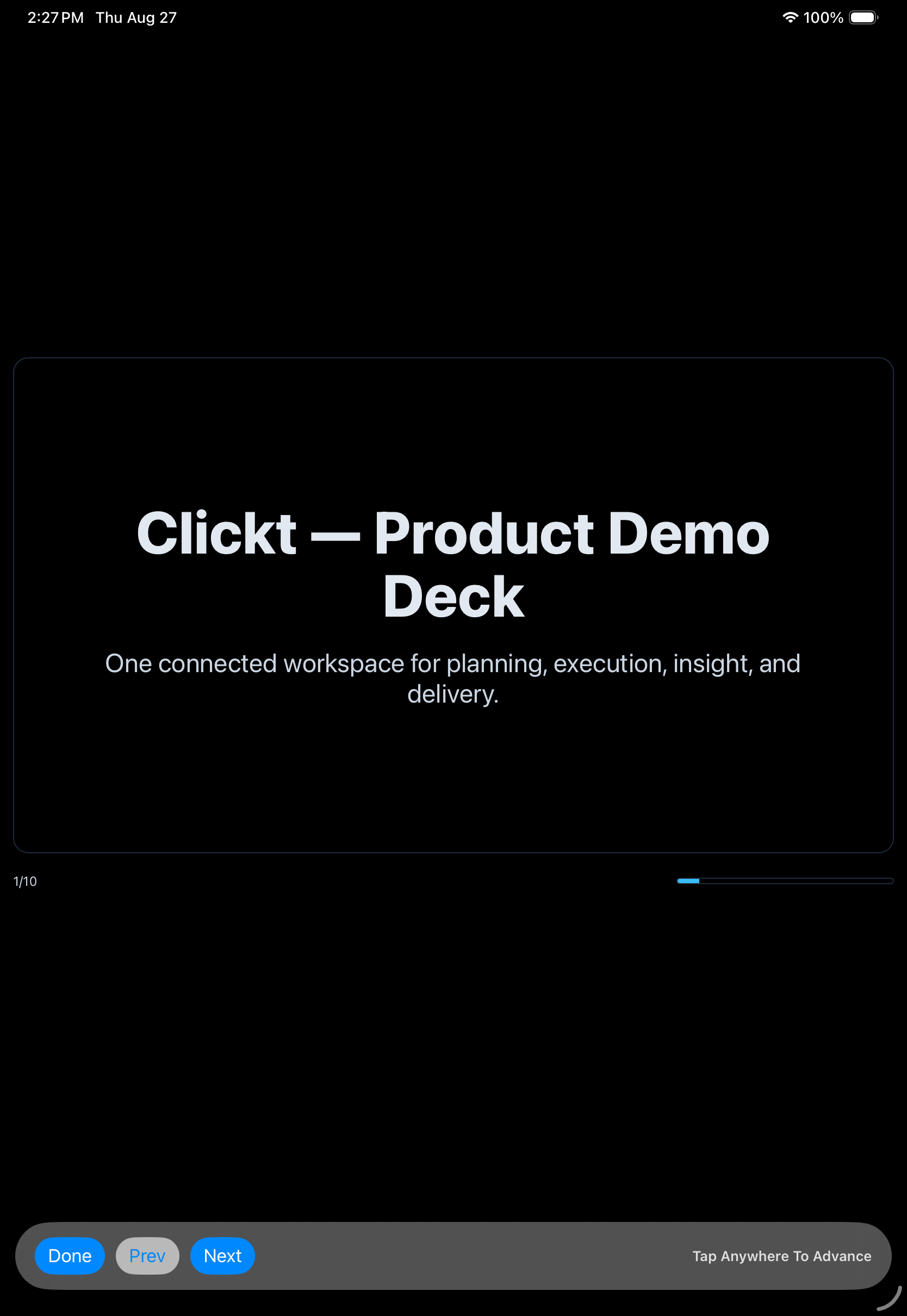
Review the presentation in a matching preview so the story can be checked before it is exported or shown.
Export the current deck as an interactive HTML deck or PDF, and bring a Builder canvas into a new or existing deck.
The meeting that moved up an hour
A client calls and wants to see something in twenty minutes, or leadership asks for a one-page update on the spot. That usually means scrambling to open a blank deck, hunting for last month’s slides to copy from, and formatting text boxes while the clock runs down.
Start a deck from scratch or from a Builder canvas, pick a theme, and preview it exactly as your audience will see it before you export. Whether you need six slides in five minutes or a detailed deck for tomorrow’s meeting, you are always a few minutes from something presentable—not caught without one.
Use the deck as an editable workspace first. The export comes after people can see and review the actual narrative.
Create a presentation for the update, meeting, report, or decision that needs a clear visual story.
Edit the slide canvas with text, images, and layout choices, or bring in a Builder deliverable.
Use the deck preview to check the work in the form people will actually see.
Export an interactive HTML deck or PDF when the story is ready for a meeting, report, or handoff.
ClicktAI in Presentation
ClicktAI can help prepare a proposed deck plan and content direction. It is still a proposal: review the suggested structure and content before applying changes to the deck.
YouPrepare a leadership update from this week’s project work.
Nothing changes in the deck until you review and approve the proposal.
Keep the work connected
When a Builder canvas becomes part of a presentation, the path from data to a decision-ready update remains visible instead of becoming a disconnected export.
See how Builder prepares the visual analysis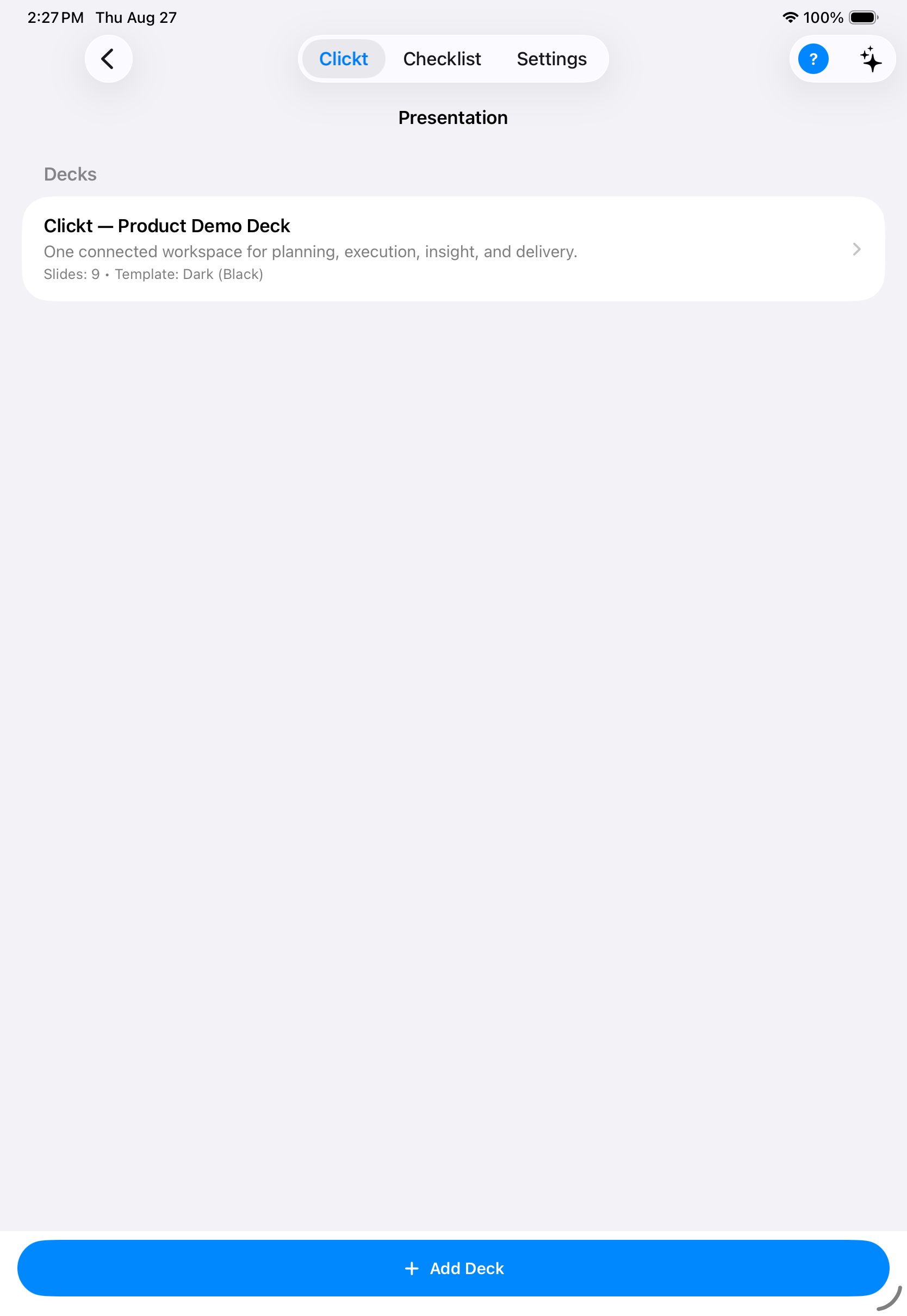
Make the decision easier to follow
Presentation is available in Clickt on Apple and Android platforms.